This free PDF prints Arabic keyboard stickers at home: 34 key labels, each 13 mm square, with the Arabic letter, its Shift character and the English key it goes on, plus a spare set. Page 1 is laid out for A4 paper and page 2 for US Letter. It matches the Arabic (101) layout Windows uses.
Download the Arabic keyboard stickers PDF (2 pages, 159 KB). No sign-up and no email form. Print it as often as you like.
What is on the Arabic keyboard sticker sheet
Each page of the PDF holds two identical sets of 34 labels, one label for every key that types an Arabic letter, so a mis-cut label has a spare. Below the sets, a legend lists the letters in alphabet order with the key each one goes on.
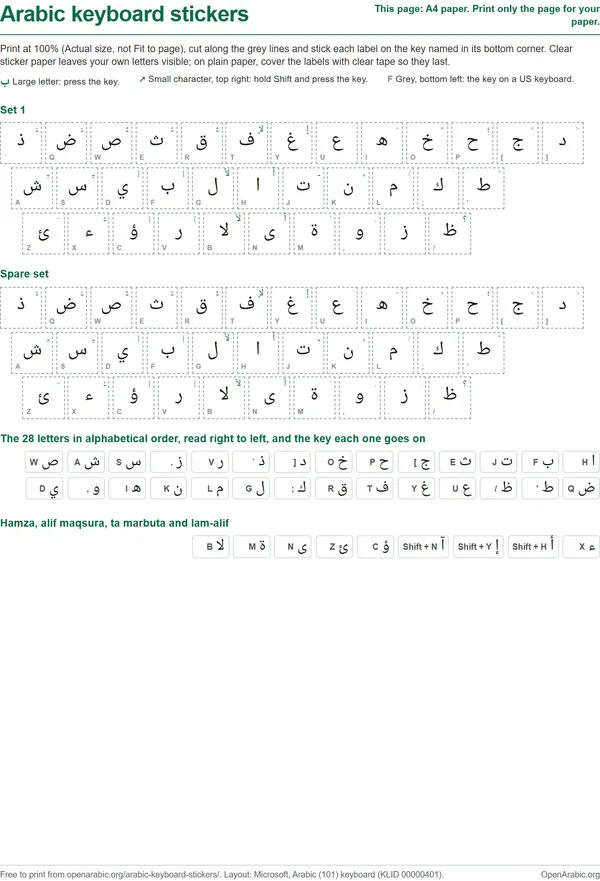
Every label is a 13 mm square inside a dashed cut line, and carries three things:
- The Arabic letter, large, in the middle: the letter the key types.
- The Shift character, small and green, top right: what the key types when you hold Shift. Eight keys carry the vowel marks and the shadda this way: the first five of the top row, plus A, S and X. Shift with ض (ḍād) types the fatha, the small slanted line for a short a.
- The English key name, grey, bottom left: Q, W, E and so on, which tells you the key to put the label on.
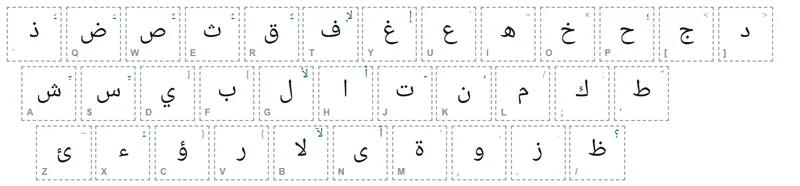
The rows run left to right, as the keys on your keyboard do, so you can lay the labels out in the same order you stick them. The top row starts with ذ (dhāl, the th of "this"), which sits on the key left of 1, above Tab. The bottom row includes لا (lām-alif, lā) on B, one key that types two letters.
The legend at the foot of each page lists the 28 letters in alphabet order, read right to left, each with its key. A second line gives the forms that have keys of their own: ء (hamza) on X, أ, إ and آ (alif with hamza or madda) on Shift with H, Y and N, ؤ and ئ on C and Z, ى (alif maqṣūra) on N, ة (tāʼ marbūṭa) on M and لا on B.
How to print and apply Arabic keyboard stickers
Print the page for your paper at 100%, cut along the dashed lines and stick each label on the key named in its grey corner. The paper you choose and whether you seal the labels decide how long they last.
- Choose the paper. Clear printable vinyl or clear sticker paper is best, because the label stays see-through around the Arabic and your English letters still show. White label sheets work too but hide the English letters. Plain paper works if you seal it with tape in step 7. Sticker paper is sold for inkjet or for laser printers; buy the kind that matches yours.
- Print one page at actual size. In the print dialog, set Pages to 1 for A4 or 2 for US Letter, and set the scale to 100% or Actual size. Turn off Fit to page: it shrinks the labels.
- Check the size before cutting. Measure one label: it should be 13 mm across, about half an inch. Hold it against a key. On a laptop with small keys, trim the dashed edge until the label sits inside the flat top of the key.
- Let the ink dry. Inkjet ink on vinyl and glossy sticker paper smudges for a few minutes after printing.
- Cut along the dashed lines. Scissors work. A craft knife and a metal ruler are faster, and give straighter edges on a whole row at once.
- Clean and stick. Wipe the keys with a cloth and let them dry, so the adhesive grips. Start with the middle row, from A to the apostrophe key, and check that the labels line up before you do the other two rows.
- Seal paper labels. On plain paper, cover each label with a piece of clear tape and trim it to the key, or the edges lift and the ink wears off under your fingers.
The labels only match your typing once your computer is set to the same layout. If you have not done that yet, follow the steps to add the Arabic keyboard on Windows, Mac, iPhone or Android. That page also has an on-screen keyboard you can type on in the browser while the labels are still on the sheet.
Which keyboard layout the stickers match
The stickers follow Arabic (101), the layout Windows installs for Arabic in Saudi Arabia, Egypt and most other Arabic-speaking countries. We drew every label from Microsoft's Arabic (101) keyboard chart, key by key, the same source as our on-page keyboard.
On Windows, pick Arabic (101). Arabic (102) AZERTY, which Windows installs for Algeria, Morocco and Tunisia, puts some letters on other keys. On a Mac, pick the Arabic – PC input source, which follows Arabic (101); the Mac's plain Arabic input source places some letters differently. Phones and tablets need no stickers, because their on-screen keyboards already show the Arabic letters.
The vowel marks sit on Shift, so a learner who writes vowelled Arabic presses Shift often. Our guide to typing harakat on any keyboard covers each mark and its key.
Printed stickers, bought stickers or a bilingual keyboard
The printed sheet is the cheapest way to see Arabic letters on your keys while you learn the layout, and it costs one sheet of sticker paper. For a keyboard you type on every day, bought sets last longer. Our recommended Arabic keyboard stickers, overlays and keyboards include a transparent sticker set, an opaque one, a silicone overlay for MacBook Pro keyboards and an Arabic-English keyboard with both scripts printed on the keys.
We recommend starting with the printed sheet and typing with it daily for a month. If you still look at the labels after that, or paper labels wear off under heavy use, buy a vinyl set or a bilingual keyboard. On a MacBook, where flat keys give stickers little to grip, an overlay is the more practical buy.
If you would rather not cover your keys at all, two other options teach the same layout. Print the one-page Arabic keyboard layout chart (PDF, 117 KB) and keep it beside the keyboard. Or look up which English key types which Arabic letter as you go. For each letter's name and sound, see our chart of the 28 Arabic letters.
Frequently asked questions
Are these Arabic keyboard stickers free?
Yes. The PDF is free to download and print, with no sign-up and no email form. Print as many copies as you need, for your own keyboard or for a classroom.
What size are the stickers?
Each label is a 13 mm square, about half an inch, which fits the flat top of a standard desktop key. Print at 100% (Actual size) and measure one label before you cut. If it is larger than the top of your key, trim the dashed edge a little.
Do the stickers work on a Mac or a MacBook?
Yes, if the Mac uses the Arabic – PC input source, which follows the same Arabic (101) layout as the stickers. The Mac's plain Arabic input source puts some letters on other keys. MacBook keys are flat and shallow, so seal paper labels with clear tape or use clear vinyl, which holds better.
Can I print them on transparent sticker paper?
Yes. Clear printable vinyl or clear sticker paper is the best choice: the printer adds only the Arabic, so the English letter on your key still shows through. Buy the kind made for your printer, inkjet or laser, because the two are not interchangeable.
Which page should I print, A4 or US Letter?
Page 1 is laid out for A4 paper and page 2 for US Letter. In the print dialog, set the pages to 1 or 2 so only your paper size prints, and set the scale to 100% so the labels keep their 13 mm size.