Arabic Keyboards > Arabic Keyboard with Harakat
To type Arabic with harakat, type the letter, then its mark. On the keyboard below, tap a letter and then a mark from the marks row. With an Arabic keyboard on your computer, hold Shift: fatha is Shift + Q, damma Shift + E, kasra Shift + A, sukun Shift + X and shadda Shift + the key left of 1.
Short vowels and marks
Hamza forms and punctuation
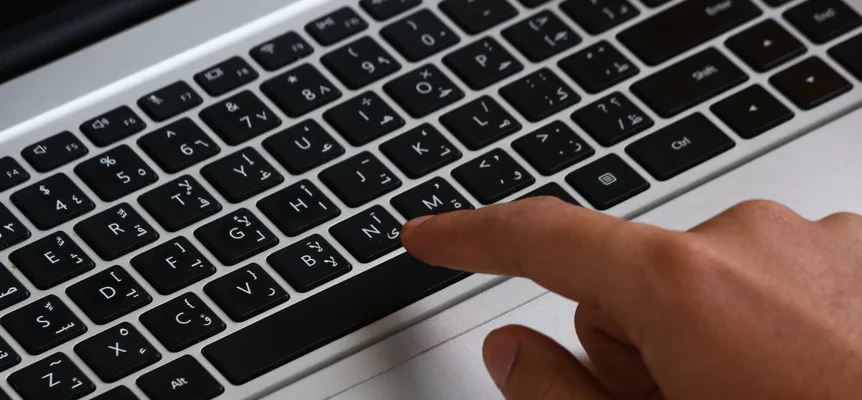
The small grey letter on each key is the English key in the same position. This is the standard Arabic layout that Windows and macOS install, so what you practise here works on a real keyboard. With the box focused you can also just type on your own keyboard and Arabic comes out.
Type an Arabic word the way it sounds, in Latin letters (salam, shukran, 7abibi), then pick its Arabic spelling from the list under the text box. Space, Enter or a punctuation mark takes the first choice; the up and down arrow keys move through the list; Esc keeps what you typed. Digits stand for the sounds Latin letters lack: 2 ء, 3 ع, 5 خ, 7 ح, 9 ص.
The marks row under the letters holds all nine: fatha, damma, kasra, the three tanwin, shadda, sukun and tatweel. Each mark goes in after the letter in front of the cursor, so tap ب and then fatha to get بَ (ba). In the box, your own keyboard types the plain letters only, and Shift + Q gives ض, not a fatha. Take the marks from the on-screen row. When the word is finished, Copy puts it on your clipboard for any app.
The Phonetic (Latin letters) button above the box lets you type a word in English letters and pick its Arabic spelling. The spellings it offers carry no vowel marks, so add them afterwards from the marks row. Our guide to typing Arabic in English letters lists the spellings it understands.
The harakat keys: which key types each mark
The harakat, also called tashkeel, all sit on the Shift layer of the standard Arabic keyboard, Arabic (101) on Windows and Arabic – PC on a Mac. The table gives the key on a US keyboard, the Arabic letter printed on that key, and a word from our own pages that carries the mark.
| Mark | Name | Sound | Key (Windows and Mac) | Example |
|---|---|---|---|---|
| بَ | fatha | short a | Shift + Q (the ض key) | جَمَل jamal, camel |
| بً | fathatayn (tanwin) | -an | Shift + W (the ص key) | شُكْرًا shukran, thank you |
| بُ | damma | short u | Shift + E (the ث key) | خُبْز khubz, bread |
| بٌ | dammatayn (tanwin) | -un | Shift + R (the ق key) | كِتَابٌ kitābun, a book |
| بِ | kasra | short i | Shift + A (the ش key) | بِنْت bint, daughter |
| بٍ | kasratayn (tanwin) | -in | Shift + S (the س key) | كِتَابٍ kitābin, a book (after a preposition) |
| بّ | shadda | doubles the consonant | Shift + ` (the ذ key, left of 1) | قِطَّة qiṭṭa, cat |
| بْ | sukun | no vowel after the consonant | Shift + X (the ء key) | كَلْب kalb, dog |
| ـ | tatweel | none: it stretches the joining line | Shift + J (the ت key) | ـَ a fatha shown on its own, as in the marks row above |
The keys come from Microsoft's chart of the Arabic (101) keyboard, key by key. The example words are spelled as on our Arabic word games and grammar pages. Transliteration uses a macron for long vowels (ā) and a dot under emphatic letters (ṭ).
The marks written above a letter, fatha and damma and their tanwin, are on the top row under your left hand: Q, W, E, R. The marks written below a letter, kasra and kasratayn, are on the row below: A and S. The plain vowel is always the first key of its pair and the tanwin the second. Shadda (left of 1), sukun (X) and tatweel (J) sit apart.
Typing order: letter first, then its mark
A mark belongs to the letter before it, so you always type the letter and then the mark. Here are five words from the table, key by key, on the Arabic (101) layout. The letter each key types is given beside it.
| Word | Keys, in order |
|---|---|
| كَلْب kalb, dog | ; ك · Shift + Q fatha · G ل · Shift + X sukun · F ب |
| خُبْز khubz, bread | O خ · Shift + E damma · F ب · Shift + X sukun · . ز |
| قِطَّة qiṭṭa, cat | R ق · Shift + A kasra · ' ط · Shift + ` shadda · Shift + Q fatha · M ة |
| شُكْرًا shukran, thank you | A ش · Shift + E damma · ; ك · Shift + X sukun · V ر · Shift + W fathatayn · H ا |
| كِتَابٌ kitābun, a book | ; ك · Shift + A kasra · J ت · Shift + Q fatha · H ا · F ب · Shift + R dammatayn |
In شُكْرًا the fathatayn goes on the ر, before the final alif, the way most modern printing places it. A doubled letter with a vowel, like the طَّ in qiṭṭa, takes two marks. Type the shadda and then the vowel, or the other way round: Unicode treats both orders as the same text, and they look the same on screen.
How to type harakat on Windows
Windows needs no special harakat keyboard. The Arabic (101) keyboard it adds with the Arabic language already carries every mark in the table.
- Add Arabic as a language, which installs the Arabic (101) keyboard. Our step-by-step setup for Windows, Mac, iPhone and Android has the menu path.
- Switch to Arabic with Windows key + Space.
- Type a letter, then hold Shift and press the key for its mark.
Windows set up for Algeria, Morocco or Tunisia adds Arabic (102) AZERTY instead, a different layout. Add Arabic (101) beside it to type with this table. If you want the Arabic letters printed on your keys while you learn, our free printable Arabic keyboard stickers fit the same layout.
How to type harakat on a Mac
On a Mac, use the input source called Arabic – PC. Wellesley College's Arabic library guide says it matches the keyboard set for Windows, so the Shift keys in the table are the same. Add it under System Settings, Keyboard, Text Input, and switch to it with Control + Space.
macOS has more than one Arabic input source, and Arabic – PC is the one laid out like Windows. To find the marks on whichever one you use, open the Keyboard Viewer (Input menu > Show Keyboard Viewer) and hold Shift. The viewer redraws every key with what it types while Shift is down, and the harakat appear on their keys. The same Wellesley guide suggests tatweel (Shift + J) to stretch a letter when a mark needs more room.
How to type harakat on iPhone, iPad and Android
Phone keyboards hide extra characters behind a long press. Apple's iPhone guide says to touch and hold the key related to a diacritic and slide to the one you want. Google's Gboard Help gives the same gesture for accents and more options: touch and hold a key.
Neither help page says which key of its Arabic layout holds the harakat, so we do not name one here: long-press keys on your Arabic keyboard to find them. Any phone with a browser can also use this page: open it, tap the letters and marks on the keyboard above, tap Copy, and paste the word into your message or document.
When to type harakat at all
Most typed Arabic carries no harakat. Newspapers, novels and text messages leave them out, and native speakers find them odd in a chat. Type them when the reader needs them: a beginner's worksheet, a line from the Quran, a name you want said correctly, or a word that could be read two ways without its vowels. For what each mark sounds like and which texts print them, see the full harakat chart, every mark on one letter.
Frequently asked questions
How do I type harakat on an Arabic keyboard?
Type the letter first, then hold Shift and press the key for its mark. On the standard Arabic (101) layout on Windows, and on the Arabic – PC input source on a Mac, fatha is Shift + Q, damma Shift + E, kasra Shift + A, sukun Shift + X and shadda Shift + the key left of 1. The three tanwin marks are Shift + W, Shift + R and Shift + S.
Where is the shadda on the Arabic keyboard?
On the Arabic (101) layout, shadda is Shift + the key to the left of 1, the key that types ذ without Shift. On a US keyboard that key is printed with ` and ~. Type the letter, then the shadda, then its vowel.
Is there an Arabic keyboard with harakat for Windows?
Yes, and it is already built in. The Arabic (101) keyboard that Windows adds with the Arabic language has every short vowel, the three tanwin, shadda and sukun on its Shift layer, so nothing extra needs to be downloaded.
How do I type harakat on Android or iPhone?
Apple and Google both document one gesture for marks and accents: touch and hold a key to see more characters. Neither help page says which key of its Arabic layout holds the harakat. If you cannot find a mark on your phone, type the word on the keyboard on this page, tap Copy and paste it into your app.
Do I type the vowel mark before or after the letter?
After. A mark belongs to the letter before it, so you type بَ as ب and then fatha. With shadda and a vowel on the same letter, the order of the two marks does not matter: Unicode treats both orders as the same text, and they look the same on screen.